Your “How-To” Guide to using the new SS Trail Map
Whichever platform you’re using, remember these 3 things determines which terrain package you can access:
Guest Ski Level + SS Program + Instructors Steeps Cert
Click here to remind yourself of the programs & terrain packages
Don’t have data and but still want to access the maps? Download areas and levels as PDFs and save them directly on your phone!
Using a computer?
Moving around the map:
Using only your mouse:
Click and drag to move left, right, up & down
Right click and hold to rotate the map
Double click or scroll to zoom
(You can also use the + & - icons in the bottom corner to zoom)
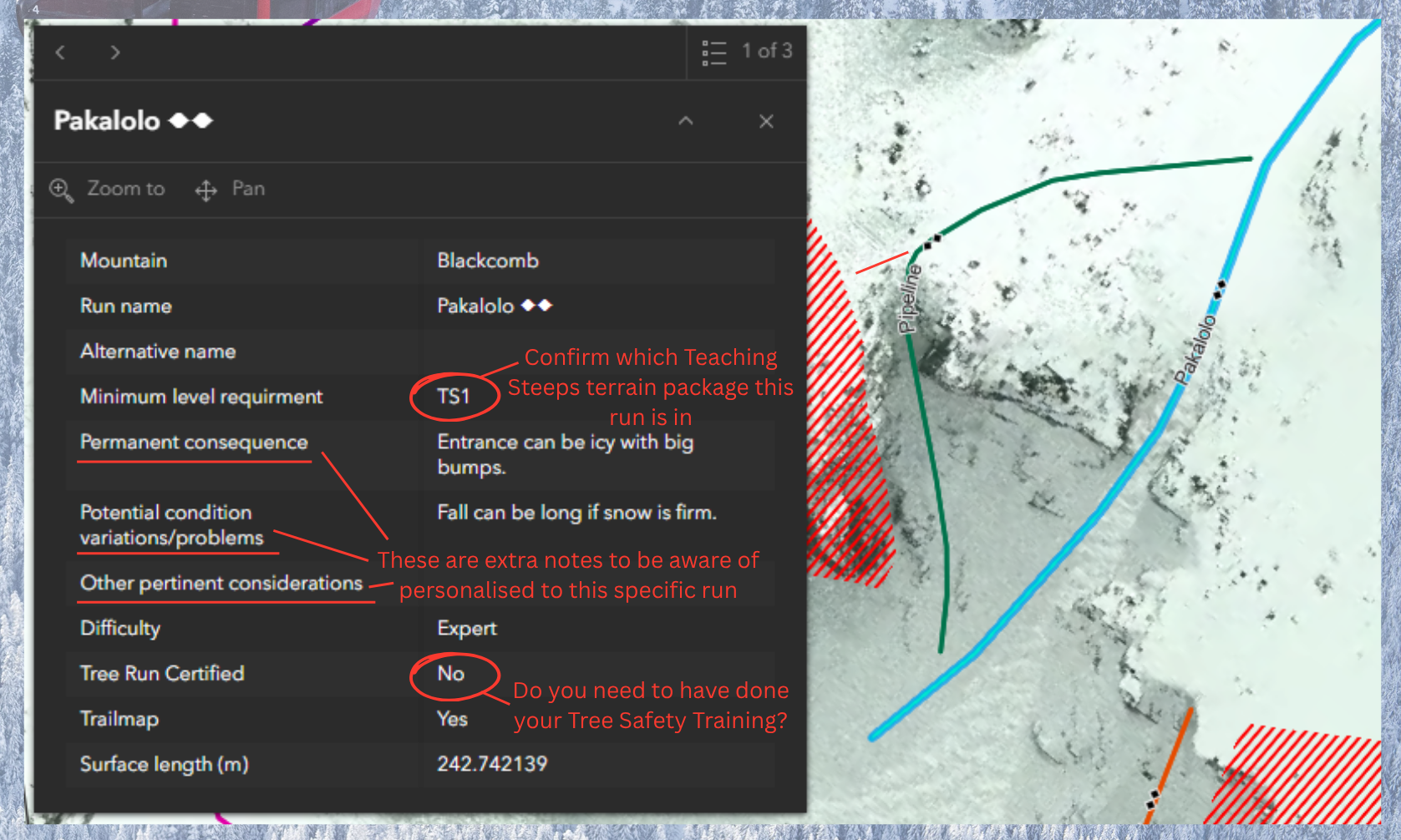
Single click on a run to read more about it
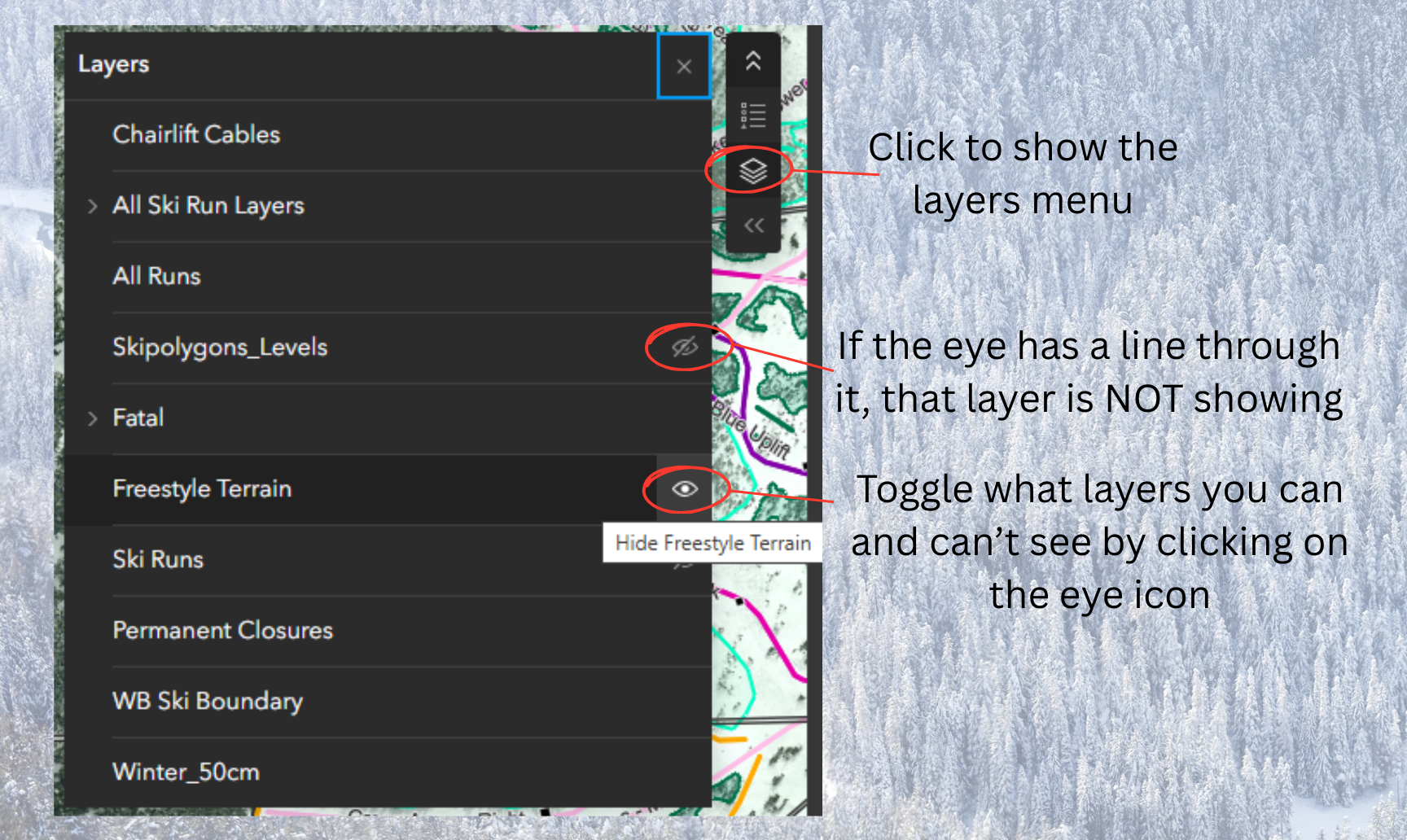
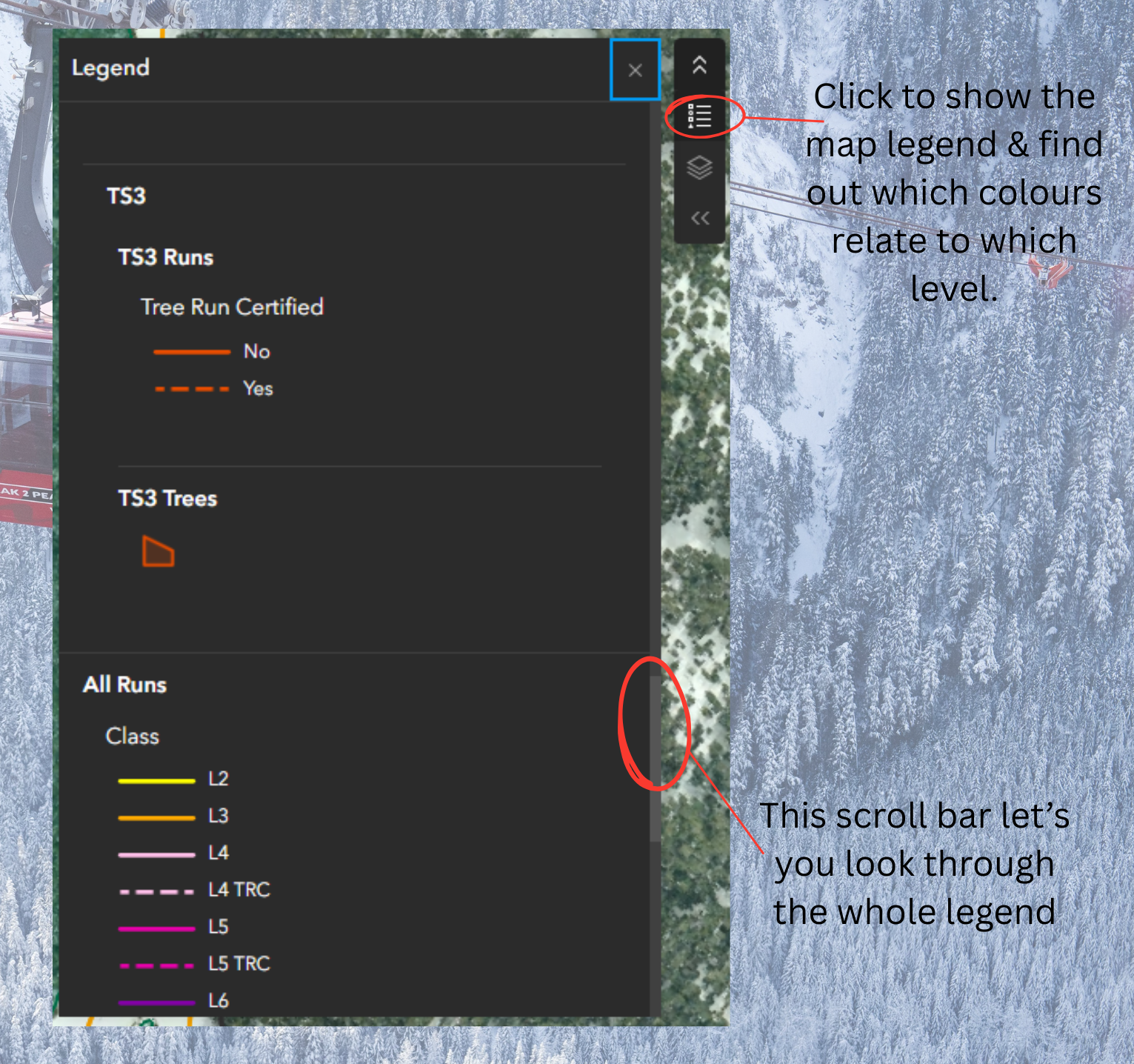
Use the mouse to find the layers and legend menus
The small circle icon allows you to find your location (if location services are enabled)

Using your phone?
Moving around the map:
Using your fingers:
touch and drag to move left, right, up & down
By using two fingers you can rotate the map
Double click or pinch in/out to zoom
(You can also use the + & - icons in the bottom corner to zoom)
Single tap on a run to read more about it
Single tap to find the layers and legend menus
The small circle icon allows you to find your location (if location services are enabled)


General Tips & Tricks
-
Hide or turning off the “Ski Runs” and “Skipolygons_Levels” layer and try again
-
Ensure the menu for these is expanded. You can tell by whether the arrows are pointing up (menu open, click to hide) or pointing down (menu closed, click to open)
-
Check your location settings and ensure that your web browser is allowed to view your location
-
If you rotate the map to a North-South orientation (quickest by pressing the compass button) you can work out which aspects face which way.
This is a great tool to use when the conditions are effecting certain aspects eg “grippy chalky snow on N aspects” or “fun spring slush on S facing slopes”.
-
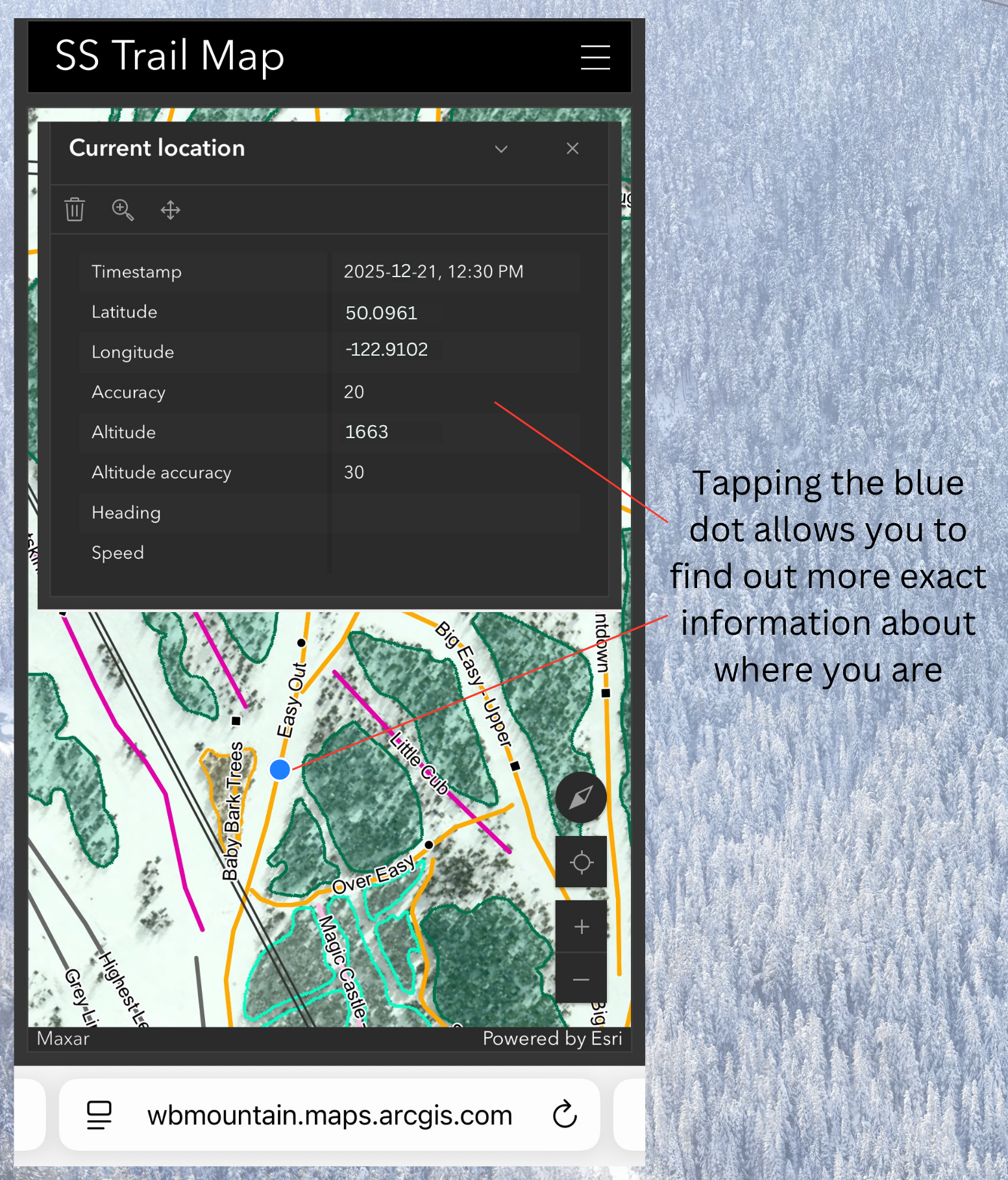
If you don’t have a flaik, you can use the GPS locator to find out exactly where you are. Either describe the runs and intersections you are close to, or tap on the blue dot and it will bring up your GPS coordinates.